Minecraft Schematic Complete Guide: Create, Import & Use
Everything about Minecraft .schematic files. Learn how to create, import, and use schematic files with WorldEdit, Litematica, and other tools.
Schematic files are basically "building blueprints" in MC. They save everything about a build - what blocks are where, which direction they're facing, the works. Super handy when you want to move a creation between worlds or share it with friends.
What Can You Do With Them?
- 📦 Save and share builds - Made something cool? Pack it up and send it to anyone.
- 🖼️ Store pixel art and map art - Perfect for complex map art projects.
- 🏗️ Server templates - Admins love these for setting up spawn areas fast.
- 🎓 Building tutorials - Some YouTubers use them to show step-by-step construction.
The Two Formats
There's .schematic (old) and .schem (new):
| Format | MC Version | Tools |
|---|---|---|
.schematic | 1.12 and earlier | MCEdit, old WorldEdit |
.schem | 1.13+ | WorldEdit 7+, Litematica |
The change happened because Minecraft 1.13 completely redid how block IDs work. Old format just doesn't cut it anymore.
What's Inside a Schematic?
It's saved in NBT format (a binary thing Mojang uses) with:
├── Dimensions (width, height, length)
├── Block IDs (what each block is)
├── Block data (like which way a log faces)
├── Entities (mobs, item frames - sometimes)
└── Tile entities (chest contents, sign text)
How to Create One
Option 1: WorldEdit
The most popular way:
// Select your area with //pos1 and //pos2, or use the wooden axe
//copy (copies the selection)
//schem save mybuilding (saves it)
Files end up in:
- Bukkit/Spigot servers:
plugins/WorldEdit/schematics/ - Fabric/Forge clients:
.minecraft/config/worldedit/schematics/
Option 2: Online Tools
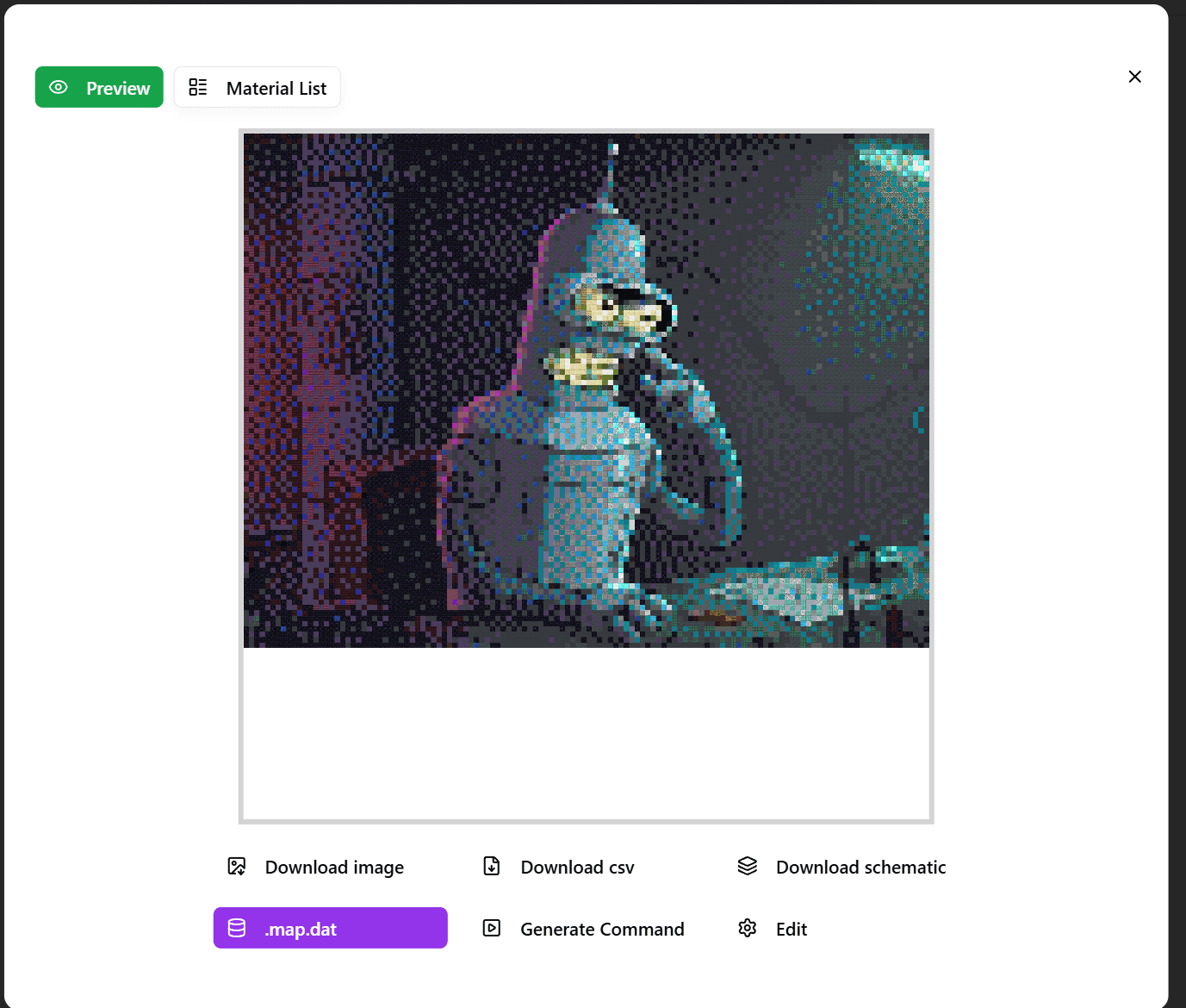
Our Minecraft Image Converter turns pictures into schematics directly:
- Upload your image
- Adjust settings
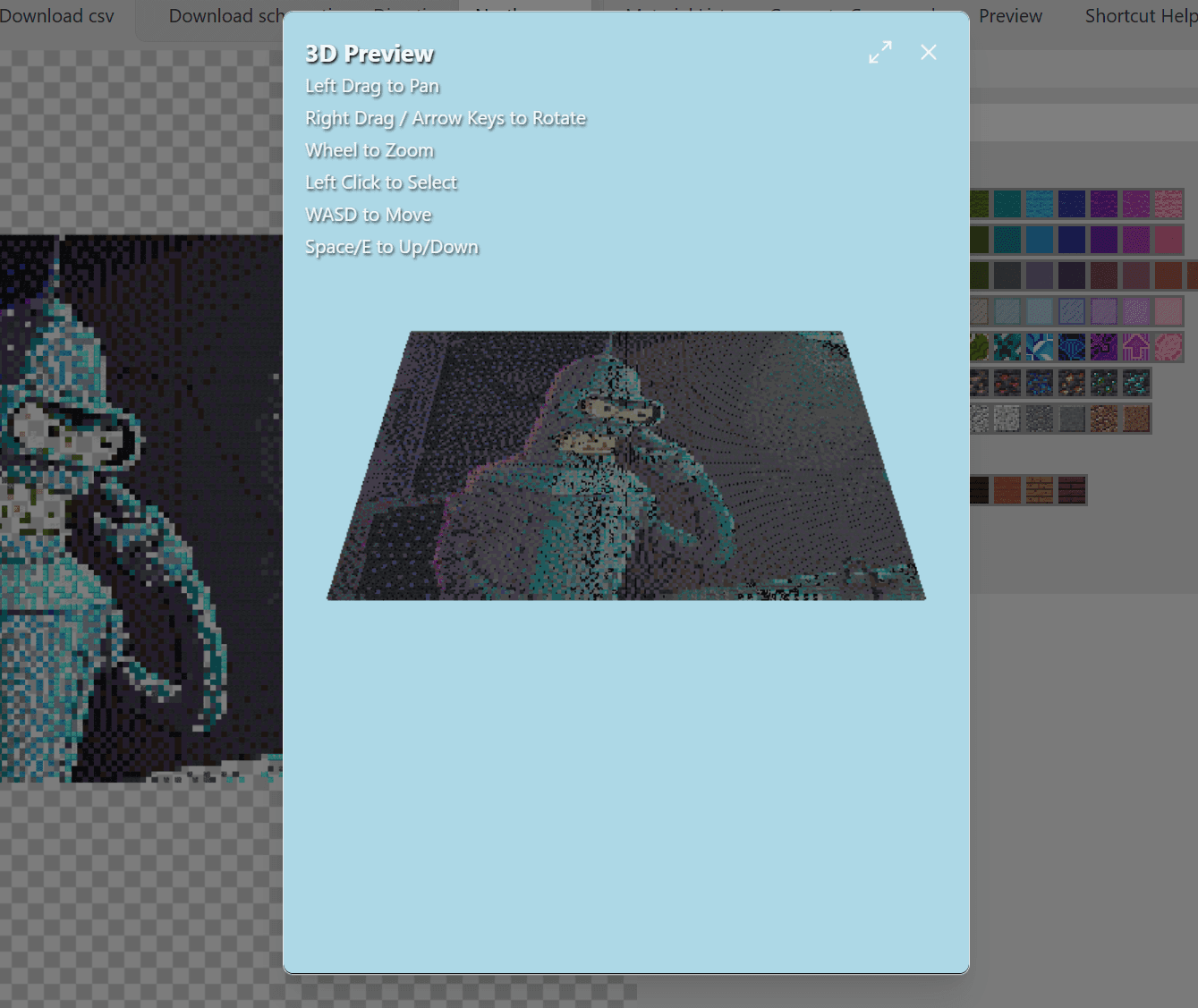
- Check the 3D preview
- Hit export
This is especially useful for pixel art and map art.
Option 3: MCEdit
MCEdit is a standalone editor:
- Open your world
- Select the region you want
- Export it
Loading Schematics Back
With WorldEdit:
//schem load filename (loads it)
//paste (puts it where you're standing)
//paste -a (ignores air blocks so you don't overwrite stuff)
With Litematica:
Litematica is great for Fabric players:
- Press
Mto open the menu - Load your schematic
- It shows as a hologram you can position
- Material list tells you exactly what blocks you need
- Build it yourself following the ghost image
Directly Into Your World:
Some schematics can go straight into your world's structures folder, then you load them with structure blocks.
Why Use Online Converters?
Compared to making schematics manually, tools save a ton of time:
Speed difference is massive:
- Manual: look at image → figure out colors → place blocks one by one (hours)
- Tool: upload → auto-convert → export (minutes)
Color matching is better: Tools have complete block color databases and use algorithms to find the closest matches. Way more accurate than eyeballing it.
Extra features:
- Dithering to simulate more colors
- Staircasing for shadow effects using height differences
- Command generation for people without mods
Common Questions
Q: Size limits?
WorldEdit defaults to 10 million blocks max. Servers usually set lower limits to prevent abuse.
Q: Cross-version compatibility?
.schematiconly works on 1.12 and older.schemworks on 1.13+ but might have issues across major version jumps- Our tool auto-adjusts for your target version
Q: How to use in Survival?
Litematica is your friend:
- Load the schematic as a hologram
- Turn on Material List to see what you need
- Gather resources and place blocks following the ghost
- Use the verification feature to spot mistakes
Q: Do entities get saved?
Depends on the tool. Ours focuses on blocks, not entities.
Pro Tips
Batch processing: If you're making multiple schematics, use our batch upload - prepare all images, export everything at once.
No mods? No problem: Export as game commands instead and run them on vanilla servers.
For big projects:
- Split into smaller chunks
- Use compression to shrink file sizes
- Back up important schematics regularly
Bottom Line
Schematic files are essential for anyone serious about MC building. Whether you're saving your own work or converting images into in-game structures, they're the standard way to do it.
Make your first schematic → Free Online Converter
More Posts

10 Minecraft Mural Ideas to Fix Your Boring Walls (2025)
Running out of decoration ideas? Here are 10 pixel art and map art mural ideas you can build in your survival world right now.


How to Make Minecraft Blueprints for Any Image (2025)
Stop guessing block placement. Learn how to generate precise, layer-by-layer building blueprints for any image or 3D model.
Mastering 3D Preview & Staircase Mode
How to use the new v1.2.0 features to create stunning map art with depth.