Mastering 3D Preview & Staircase Mode
How to use the new v1.2.0 features to create stunning map art with depth.
The Power of Height
Did you know that Minecraft maps display colors differently based on the height of the block relative to the block north of it?
- If a block is higher than the block to its north, it appears lighter.
- If a block is lower than the block to its north, it appears darker.
This is known as "Staircasing". It triples the available color palette!
Using Staircase Mode
In Minecraft Image Converter v1.2.0, we introduced full support for Staircase Mode.
- Upload your image.
- In settings, toggle "3D / Staircase Mode".
- You will see the image transform. It might look strange in 2D because of the height differences.
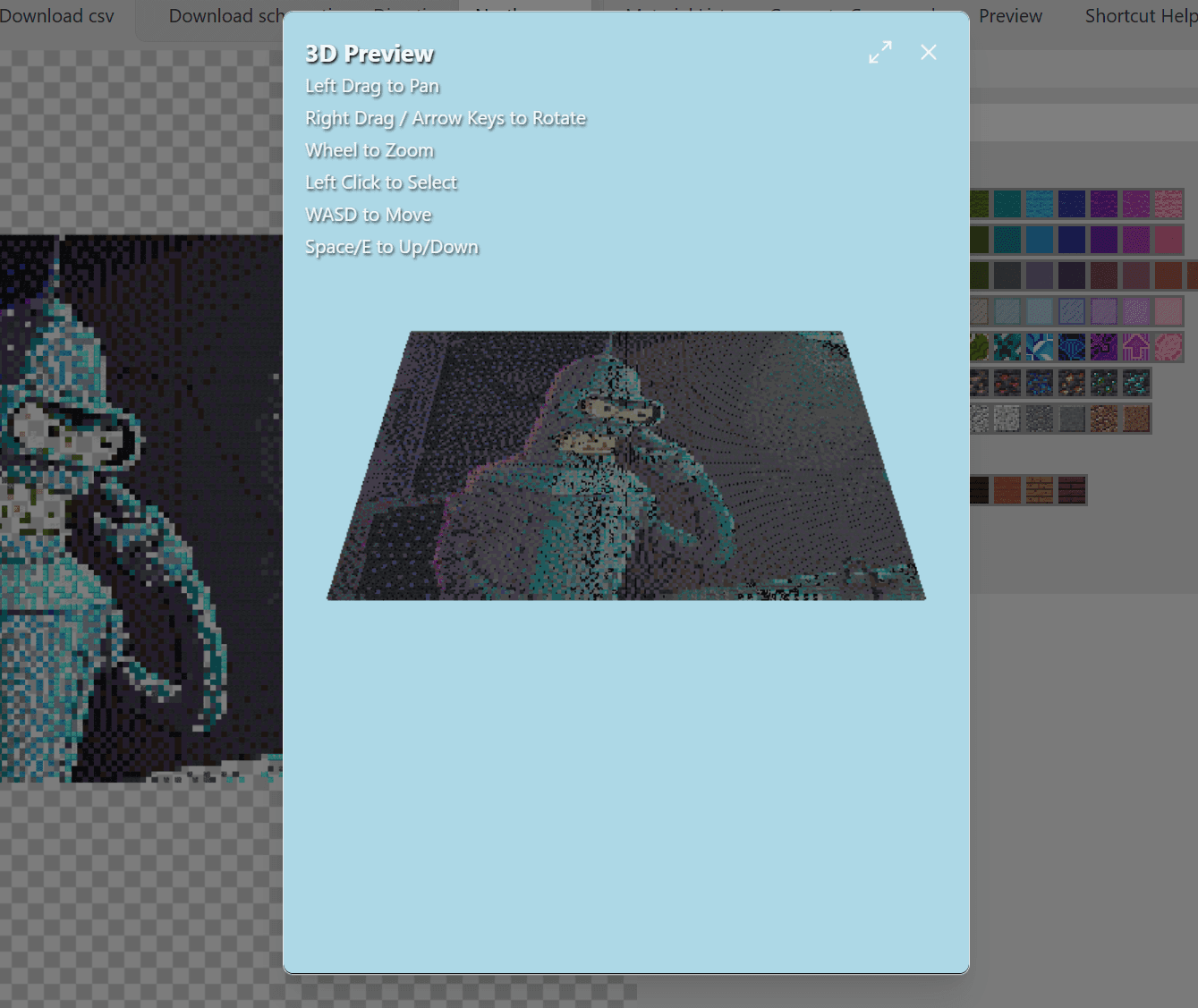
- Click "View 3D Preview" to interactively rotate and inspect the map. You'll see how the blocks are arranged in steps to create shades.
Command Generation
Building a staircase map manually is incredibly tedious. The best way is to use our Command Generation feature.
After converting your image, simply click "Generate Command". Paste the generated command into a Command Block in your creative world, and watch the art build itself instantly!
Author

Categories
More Posts

How to Build Giant Minecraft Statues (The Easy Way)
Want to build a massive statue in your survival world? Learn how to use layer-by-layer schematics to build huge structures without modding.
Minecraft Map Art Color Guide: Complete Block Palette
Deep dive into block colors for Minecraft map art. Includes complete color codes, block groupings, and selection recommendations.

Ultimate Guide to Minecraft Map Art: Generators, Schematics & Tools
Master Minecraft Map Art in 2025. Learn how to use generators to convert images to maps, import schematics with Litematica, and build survival-friendly art.