
How to Turn a Picture into Minecraft Blocks (Without Losing Your Mind)
Want to build a photo in Minecraft? Here is how to turn any picture into blocks using generators. No mods required (unless you want them).
I’m going to be completely honest with you right now.
The precise moment I decided to build a "portrait" in Minecraft for the first time, I set myself up for absolute disaster. I vividly remember spending about four hours staring at a reference photo of my cat, frantically switching between Orange Wool and Orange Concrete to see which one looked slightly less terrible. The final result was a collection of pixelated blobs that looked absolutely nothing like a cat, and frankly, it was a bit tragic.
It turns out that while our human eyes are fantastic at recognizing shapes, our brains are surprisingly terrible at converting those RGB values into a limited 16-color block palette on the fly.
If you are reading this article, you probably have a specific photo that you desperately want to get into your Minecraft world, whether it's a company logo, a meme, or a picture of your face.
And I am guessing you don't want to spend four hours placing random blocks just to have the final result look like a potato. The good news is that you absolutely don't have to do that.
There is a significantly easier way to turn a picture into Minecraft blocks, and the best part is that it involves zero guesswork on your part.
Just use a Generator (Please)
Look, I love "hand-built" creative projects as much as the next guy, but I firmly believe some things are better left to algorithms, and mapping 16 million colors to Minecraft blocks is one of them.
We actually built a tool specifically for this purpose, and you can find it right here on the site.
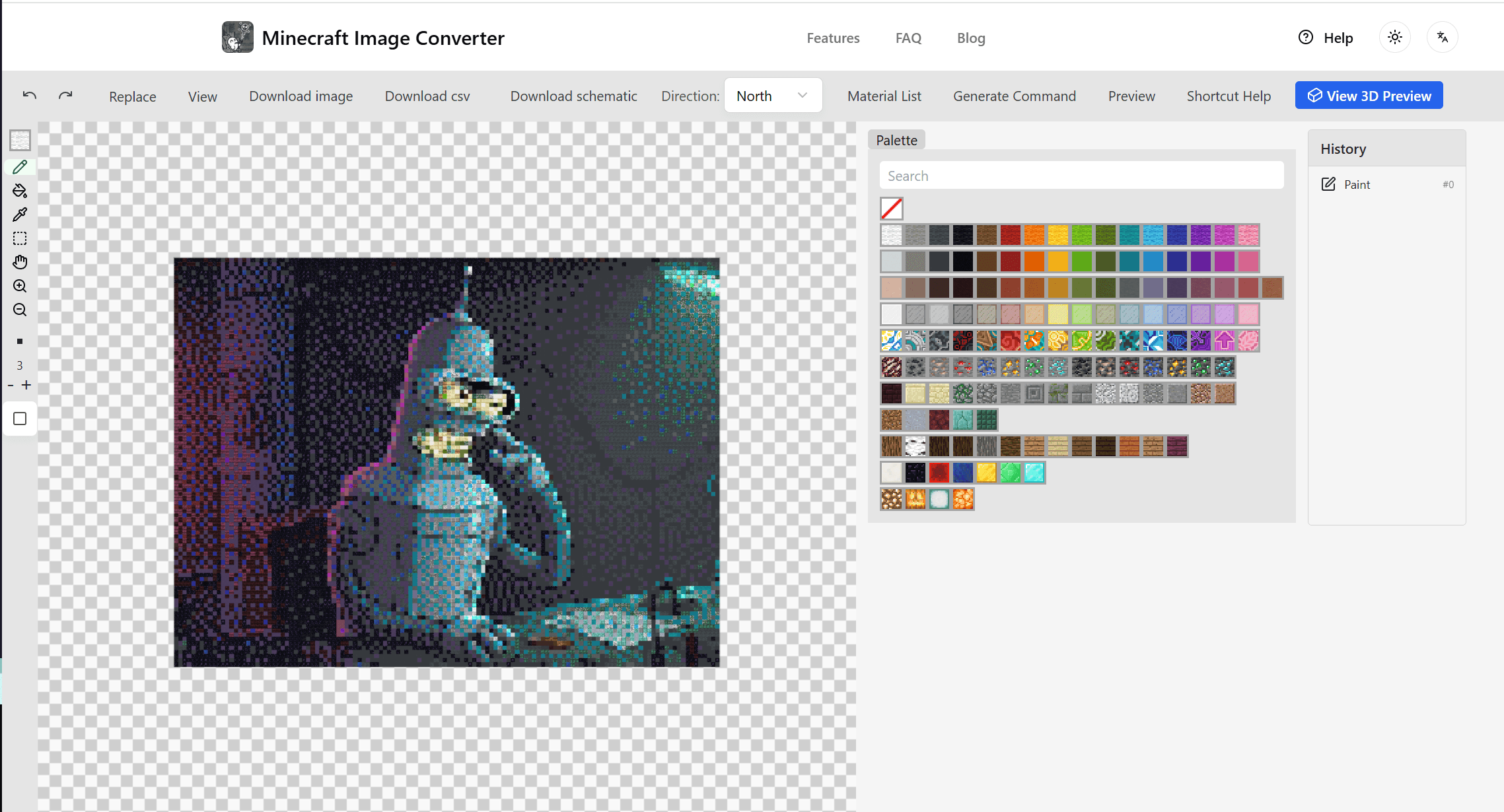
Basically, you just need to upload your image to the converter.
Then—and this is the part where most people mess up—you need to carefully pick a size. If you choose something small like "50 blocks wide", you really shouldn't expect it to look like a 4K photo because blocks are simply too big for that level of detail. You generally need to go for at least 100 to 150 blocks wide if you want actual, recognizable detail in your build. If you just want a small icon on a map, sure, goes small, but for a portrait, you have to go big.
You also get to pick your block palette. If you are playing in Survival mode, do yourself a favor and switch it to "Wool Only" or "Common Blocks". I once made the mistake of generating a huge Schematic that required 4,000 blocks of Raw Iron Block because the color matched perfectly, and I hated myself when I had to mine that much iron.
Getting it into the game
Okay, so you have the design ready and the tool shows you exactly what it looks like. Now what do you do?
If you happen to be playing in Creative mode, or you own the server, you can just click the button to copy the command. Then you just paste it into a Command Block and you are done instantly.
But if you are playing in Survival, you really need to install Litematica.
Seriously, stop what you are doing and handle that mod installation. It takes the file from our tool (the .litematic one) and projects a holographic "ghost" of the build directly into your world. You still have to place the blocks manually—so it’s technically "legit"—but you don’t have to count pixels. You simply fill in the ghost blocks, which is incredibly satisfying, kind of like an aggressive 3D coloring book.
You could technically just look at the grid on the website and place blocks by hand while looking back and forth between your monitors. I have done this before and it definitely works, but I have to warn you that it's a fantastic way to develop severe neck pain.
A note on "Speckles"
You might notice that your converted image looks weirdly speckled when you look at it up close.
That effect is called Dithering.
It’s basically a fancy math trick where the tool mixes two different block colors (like White Wool and Light Gray Concrete) to create the illusion of a color that doesn't actually exist in the game.
When you look at it from far away, it looks amazing and resembles a real photo. However, if you walk right up to the wall and look closely, it basically looks like a chaotic mess of colored wool.
If you are building something huge that you plan to view from the sky, keep Dithering ON. If you are building a cartoon character or a logo on a wall that players will walk past, turn Dithering OFF.
That’s basically all there is to it. Don't overthink the process. Just use the tool, get the schematic file, and start building your masterpiece. It’s guaranteed to be way better than the potato-cat I tried to build manually.
Author

Categories
More Posts
Minecraft Map Art Color Guide: Complete Block Palette
Deep dive into block colors for Minecraft map art. Includes complete color codes, block groupings, and selection recommendations.
How to Make Minecraft Pixel Art: Complete Beginner Guide
Learn to create stunning pixel art in Minecraft from scratch. Covers manual methods, online tools, block color charts, and practical tips.

5 Best Minecraft Building Mods You Need in 2025 (Fabric)
Still placing blocks one by one? Stop it. Here are the 5 essential Fabric mods (Axiom, Litematica, WorldEdit) that will turn you into a building god.